AI-Requirements
AI-Powered Requirements
Section titled “AI-Powered Requirements”Testomat.io introduces another AI-powered feature - AI-Requirements that helps to streamline test coverage alignment with product requirements.
A dedicated ‘Requirements’ page brings all your requirements into a single, convenient workspace, allowing you to view, organize, and update requirements in one place — without jumping across different parts of the project.
When you add a Requirement source (Jira issue, Confluence page, PDF file, etc.) in Testomat.io, the system will analyze it’s description and automatically suggest a structured requirement summary. Also, by clicking on the requirement, you can check all suites linked to it, requirement source and added attachments.
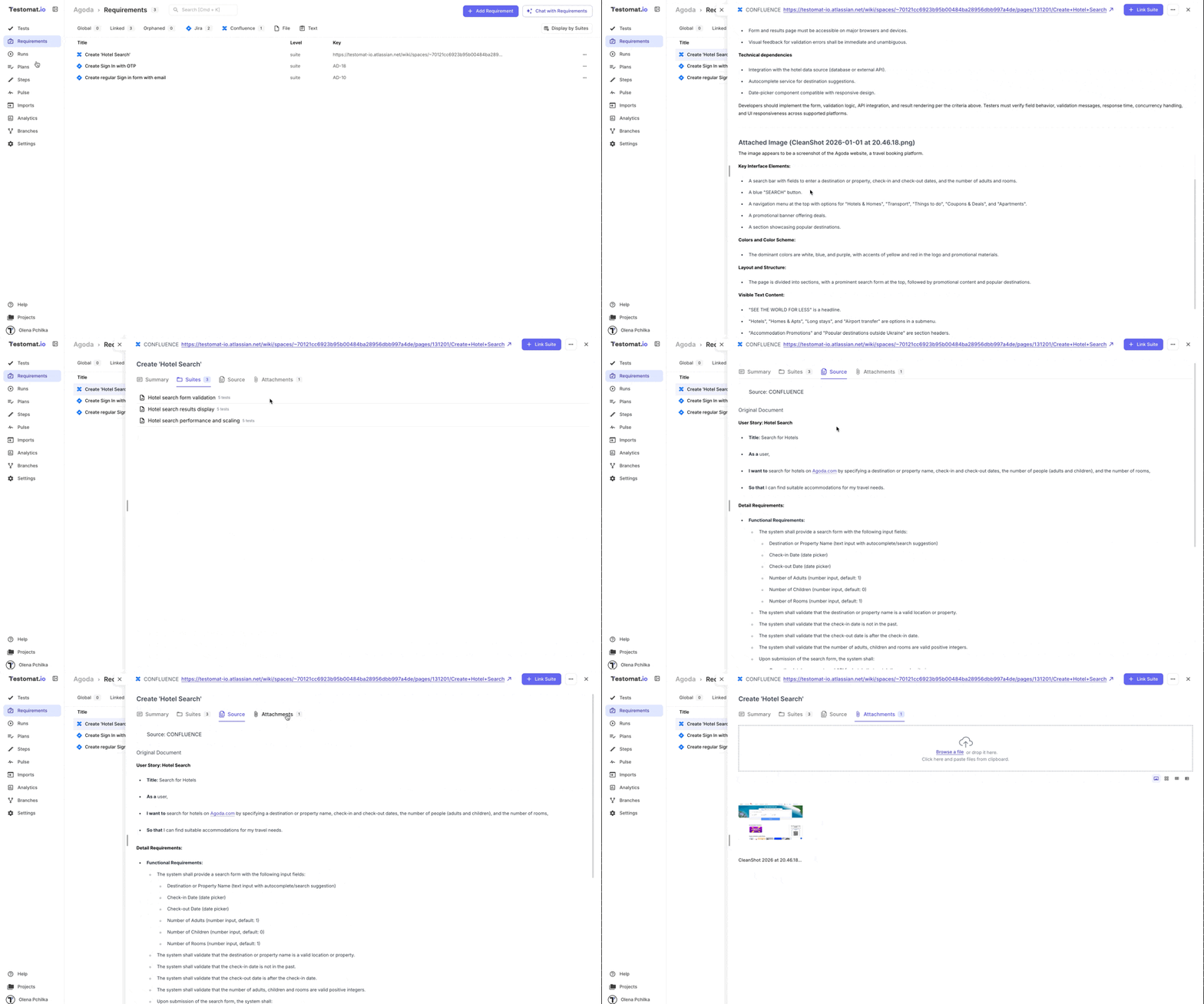
Based on the requirement analysis, you’ll be offered two intelligent options:
- Generate a new test suite with suggested test cases.
- Analyze existing suites and suggest test coverage improvements.
This feature is available both at the project level and within individual test suites, enabling flexible, requirements-driven testing whether you’re planning at a high level or working in a focused domain.
Key benefits:
- Automates the transition from requirements to test cases.
- Ensures traceability and alignment between business goals and test coverage.
- Reduces manual effort and potential gaps in test planning.
Requirements Page Overview
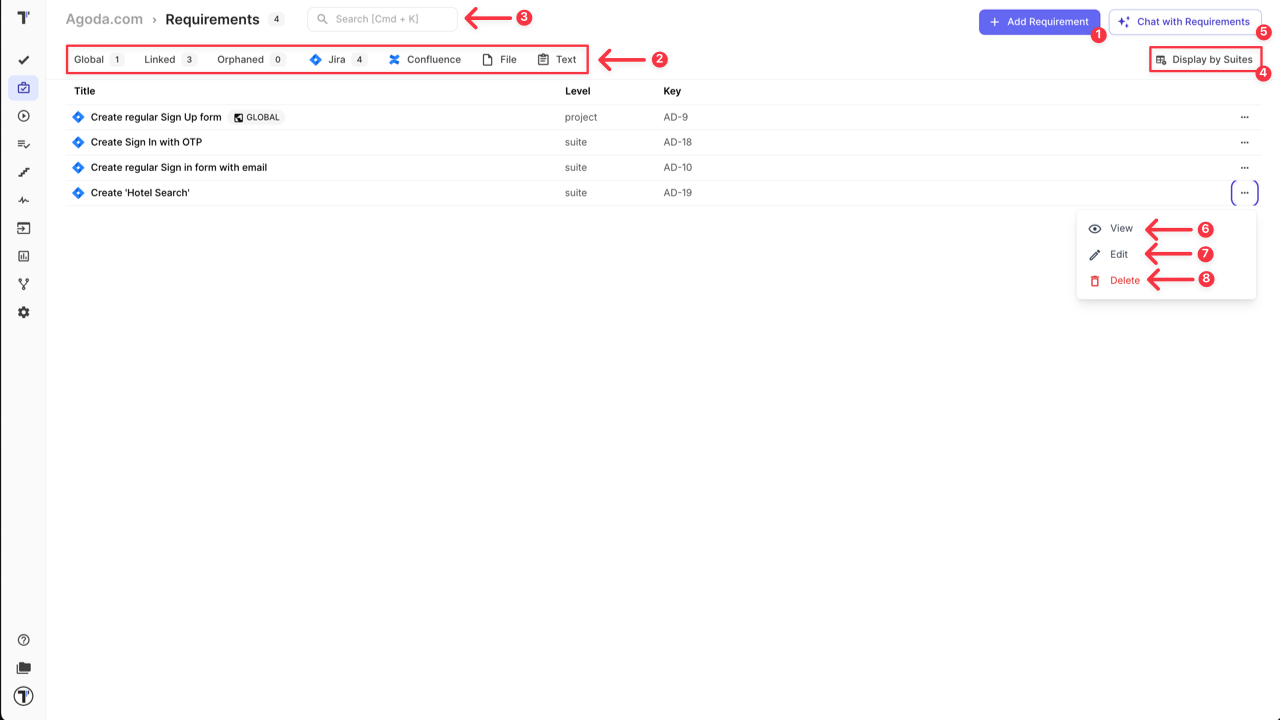
Section titled “Requirements Page Overview”On ‘Requirements’ page you can:
- Link new requirement (check ‘Add Requirements to a Project’ section for more details).
- Filter requirements by sourse type, level and status.
- Search for the information inside the requirements.
- Change the Requirements Display view (check section below for more information).
- Use AI feature ‘Chat with Requirements’.
- View ‘Requirement details’ page.
- Edit Requirement.
- Delete Requirement.
Requirements Display View
Section titled “Requirements Display View”Select the requirements display view based on your needs:
-
‘Display as List’: allows you to work with requirements on the Requirements level. All the requirements are displayed in one list. In this view you can view requirement details, link suites to the selected requirement, add attachments or requirement notes.
-
‘Display by Suites’: allows you to work with the requirements on the Suites level. All the suites are displayed in one list with the requirements linked to each suite. In this view you can see what suites don’t have any requirements linked, what requirements are added to the specific suite and check if nothing was missed, you can attach/detach the requirement to the selected suite and as well change the requirement details.
Add Requirements to an Empty Project
Section titled “Add Requirements to an Empty Project”You can start a new project by first adding your requirements.
Once a project is created (BDD or Classical), set up the integration for your Requirement Source (see detailed instructions for JIRA and Confluence). Then, proceed with adding requirements:
- Open ‘Requirements’ page.
- Click ‘+New Requirements’ or ‘+Add Requirement’ button.
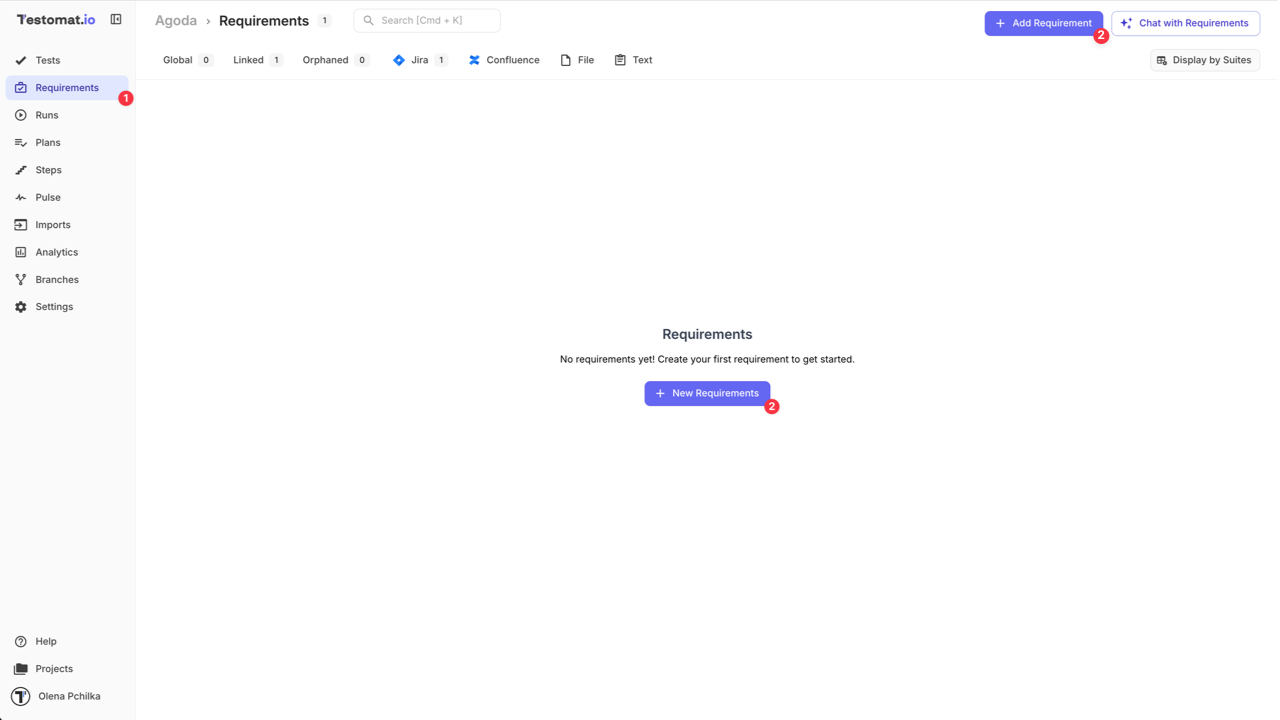
- Select your requirement source (Jira in our case).
- Enter ‘Jira Issue ID’.
- Click ‘Save’ button.
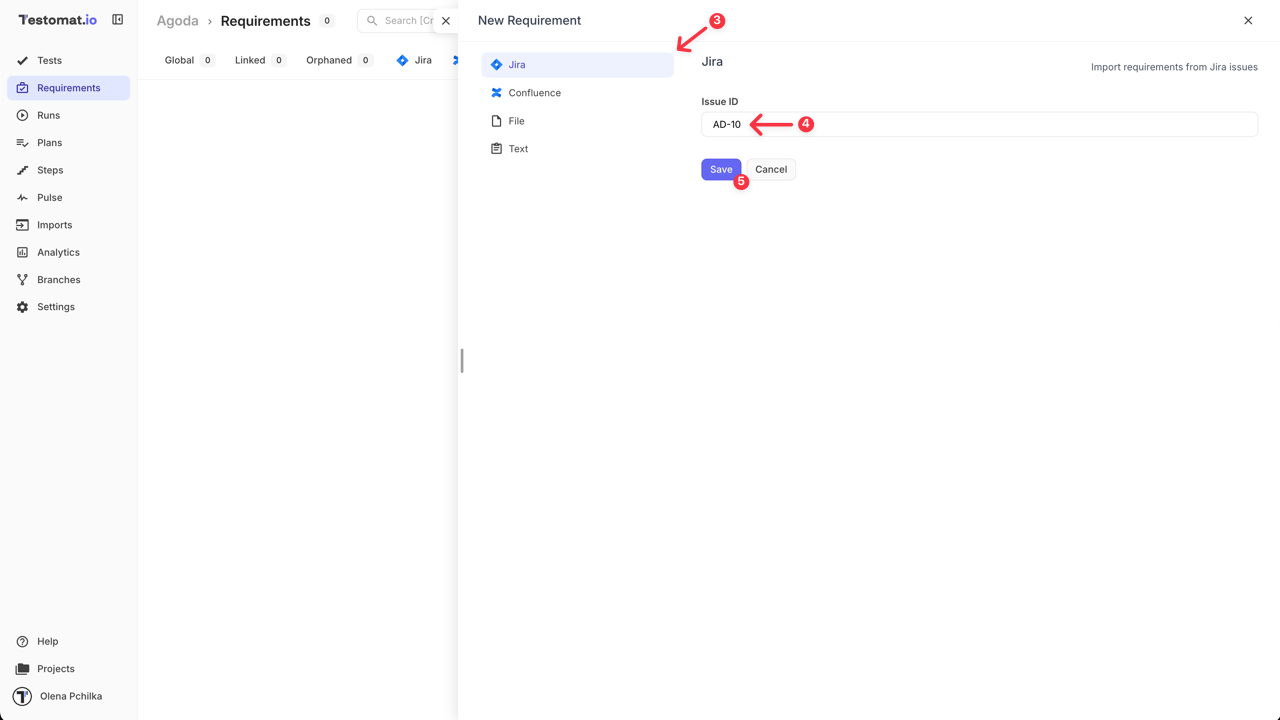
After the requirement is linked to Testomat.io you can use AI Assistant to analyze requirements for edge cases and potential solutions. You can also create suites and test cases based on these requirements.
Link Requirement to an Existing Suite Case
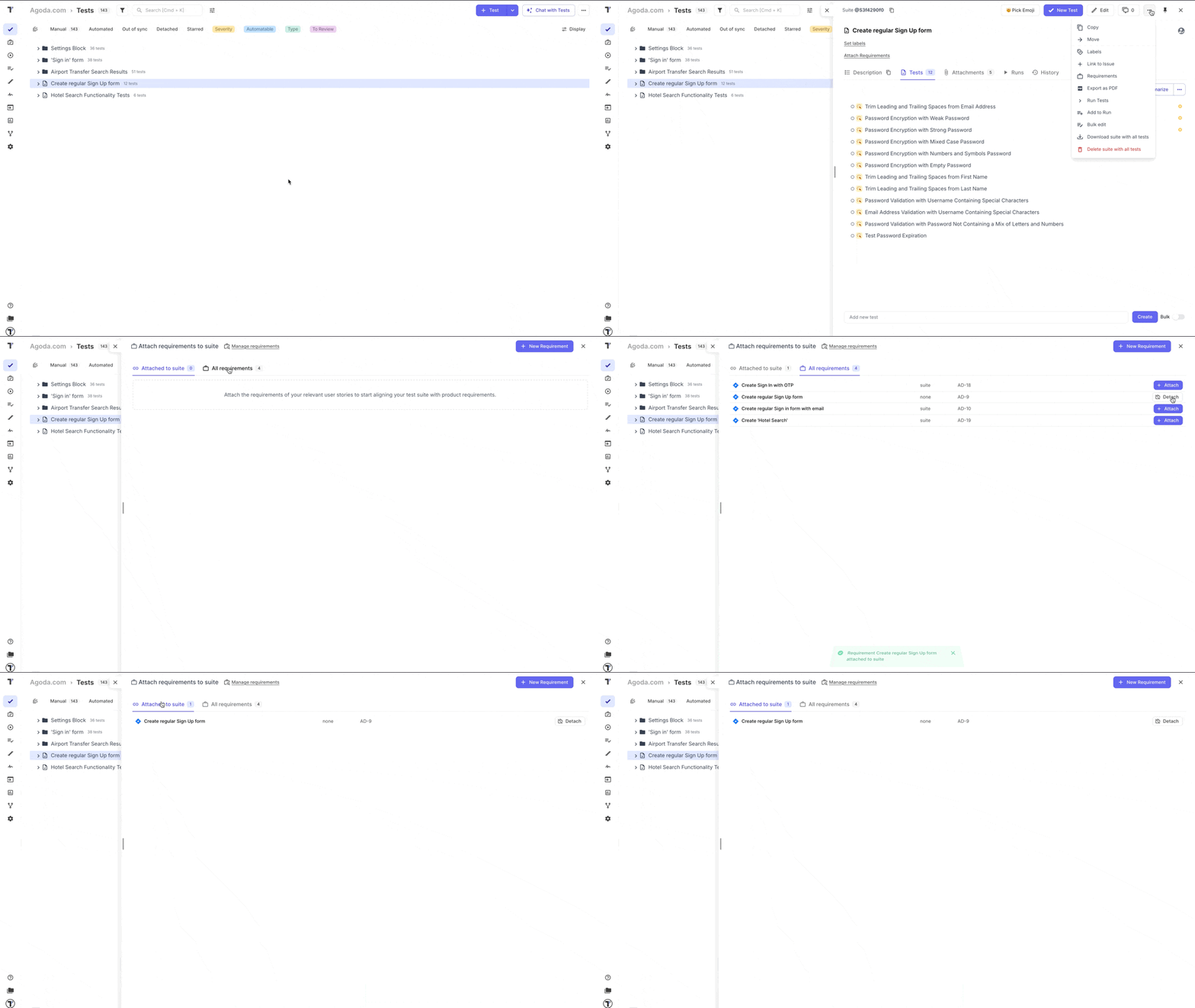
Section titled “Link Requirement to an Existing Suite Case”Testomat.io allows you to link a requirement that was already added to the Project to an existing suite case directly from its page. To do that, follow these steps:
- Open your Suite Case.
- Click ‘Extra menu’ button.
- Select ‘Requirements’ option from the dropdown list.
- Open ‘All Requirements’ tab.
- Select the requirement that you want to link to the Suite from the list by clicking on ‘Attach’ button.
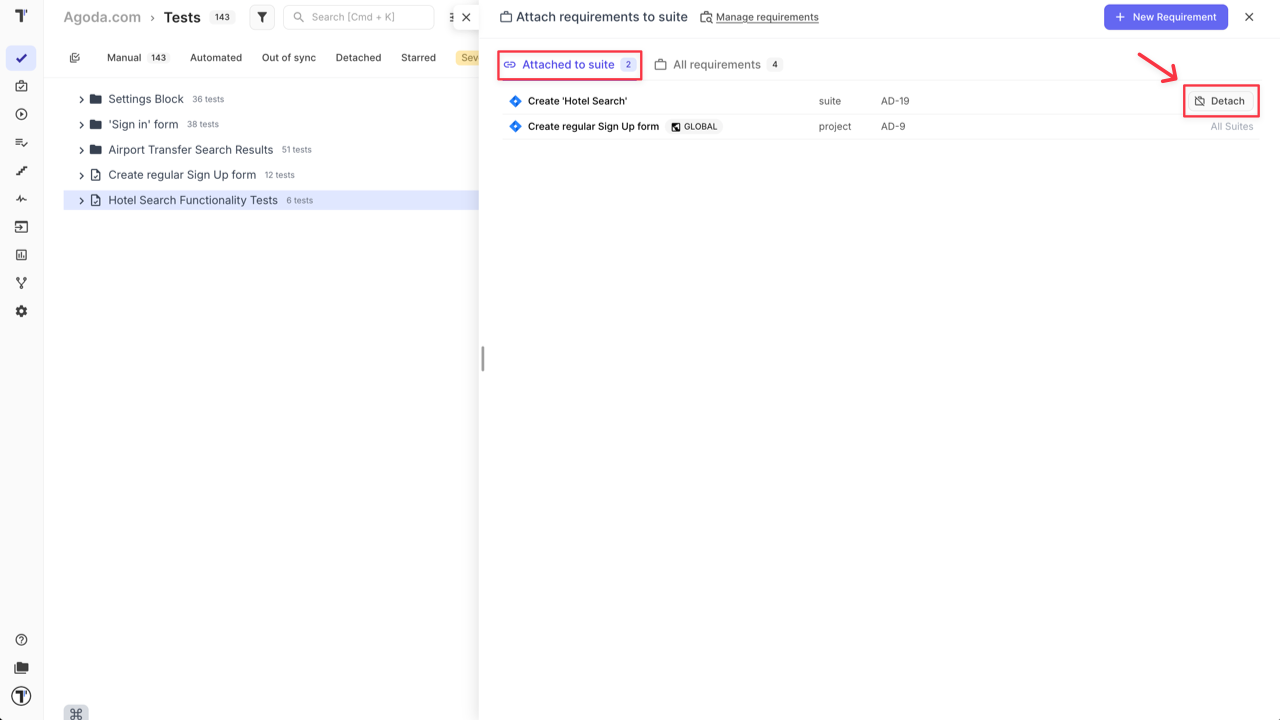
To unlink the requirement from the suite, follow Steps 1-3 and on ‘Attached to suite’ or ‘All Requirements’ tab click ‘Detach’ button for requirement that you want to unlink.
Jira as a Requirement Source
Section titled “Jira as a Requirement Source”Testomat.io not only allows you to start a new project with requirements but also to link requirements to an ongoing project at any time.
To add Jira as a Requirement Source:
- Open your Project in Testomat.io.
- Go to ‘Requirements’ page.
- Click ‘+Add Requirement’ button.
OR
Access ‘Requirements’ page via ‘Extra menu’ button on ‘Tests’ page.
- Select ‘Jira’ as your Requirement Source.
- Enter ‘Jira Issue ID’.
- Click ‘Save’ button.
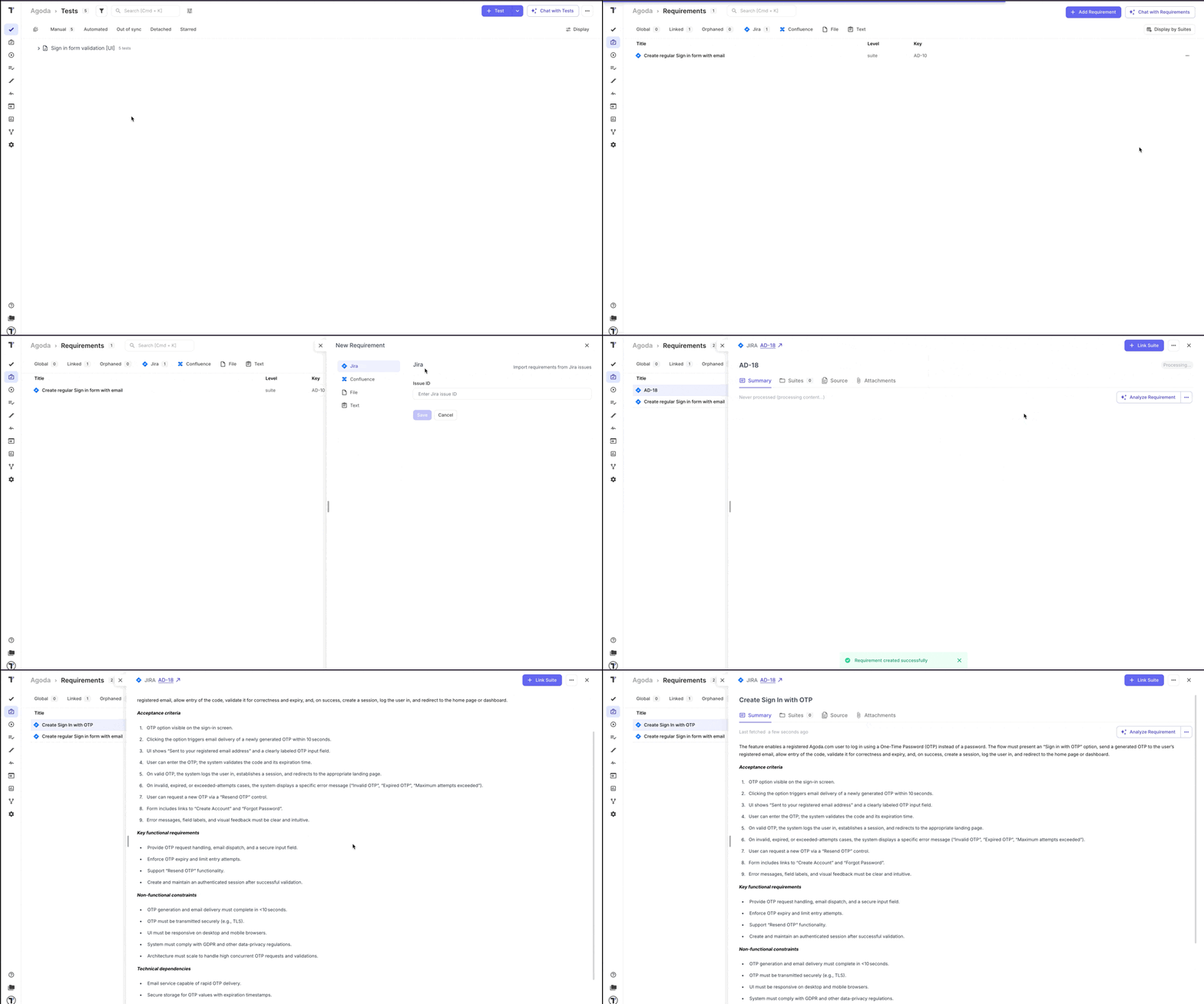
Same as for a new project, after the requirement is linked to your project, you can start using AI-features for analyzing it, and generating suites, test cases, and edge cases to cover your requirements.
Confluence as a Requirement Source
Section titled “Confluence as a Requirement Source”Testomat.io allows you to use your Confluence space as a source of requirements. First, connect your Confluence space to your Testomat.io project, similar to setting up Jira. For detailed setup instructions, refer to the ‘Confluence’ section.
Once connected, the system can analyze your Confluence pages to extract requirement descriptions, assess traceability, identify edge cases, and generate relevant test suites and test cases.
This integration bridges the gap between documentation and test planning, enabling seamless test coverage based on the requirements your teams already maintain.
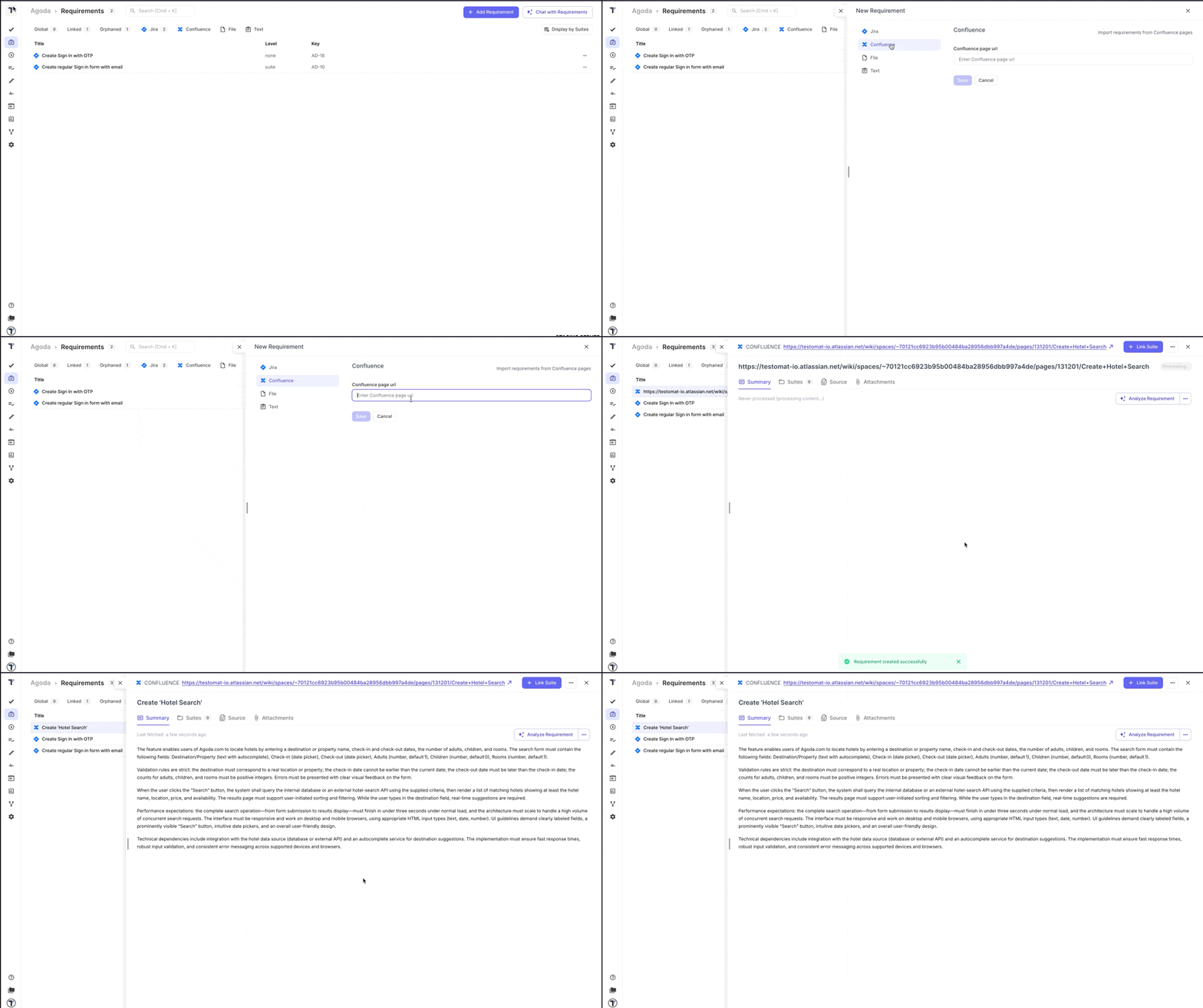
To add Confluence as a Requirement into your project:
- Go to ‘Requirements’ page.
- Click ‘+Add Requirement’ button.
OR
Access ‘Requirements’ page via ‘Extra menu’ button on ‘Tests’ page.
- Select ‘Confluence’ as your Requirement Source.
- Enter ‘Confluence page url’.
- Click ‘Save’ button.
Files & Text as a Requirement Source
Section titled “Files & Text as a Requirement Source”Testomat.io allows you to use not only Jira or Confluence as a Requirement Source, but also add text files, docs, spreadsheets or even screenshots and images.
Supported sources include:
- Files — PDF, DOCX, XLSX, CSV, TXT, Markdown, and others.
- Plain text — paste any text and instantly convert it into structured requirements.
This makes it much easier to import requirements from PRDs, customer documentation, spreadsheets, briefs, or any internal artifacts your team already uses.
To add requirement:
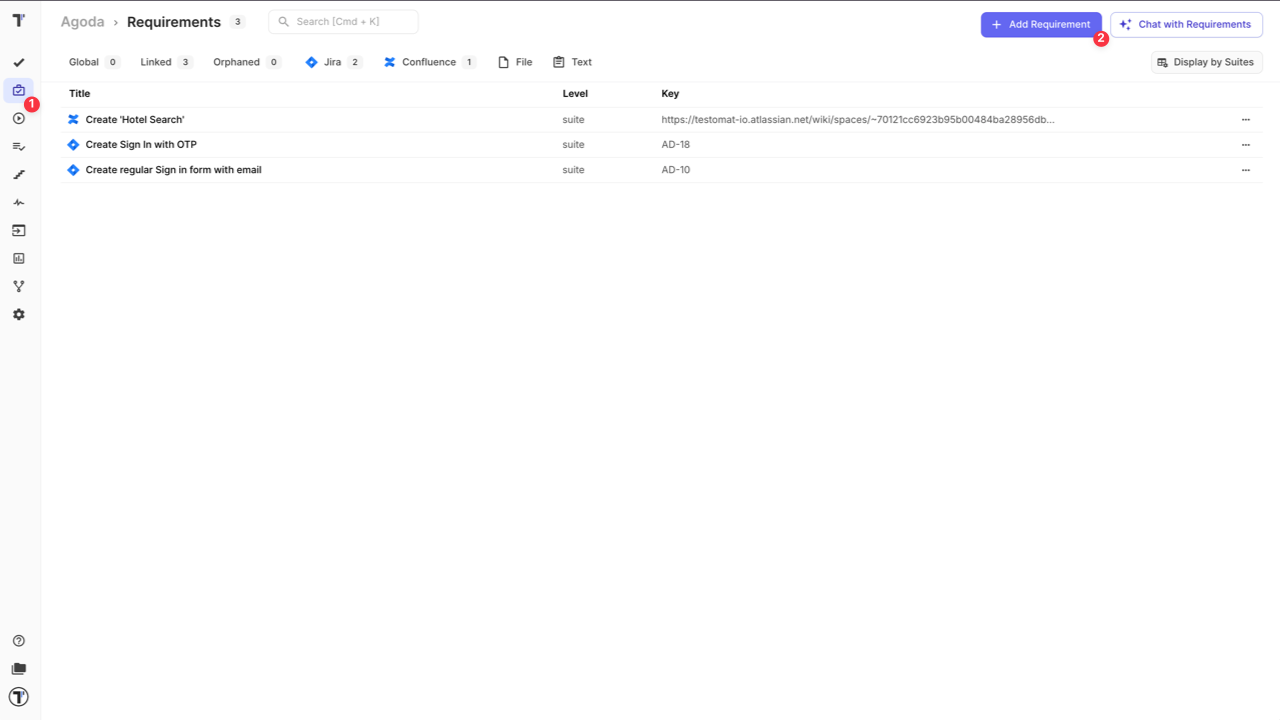
- Go to ‘Requirements’ page.
- Click ‘+Add Requirement’ button.
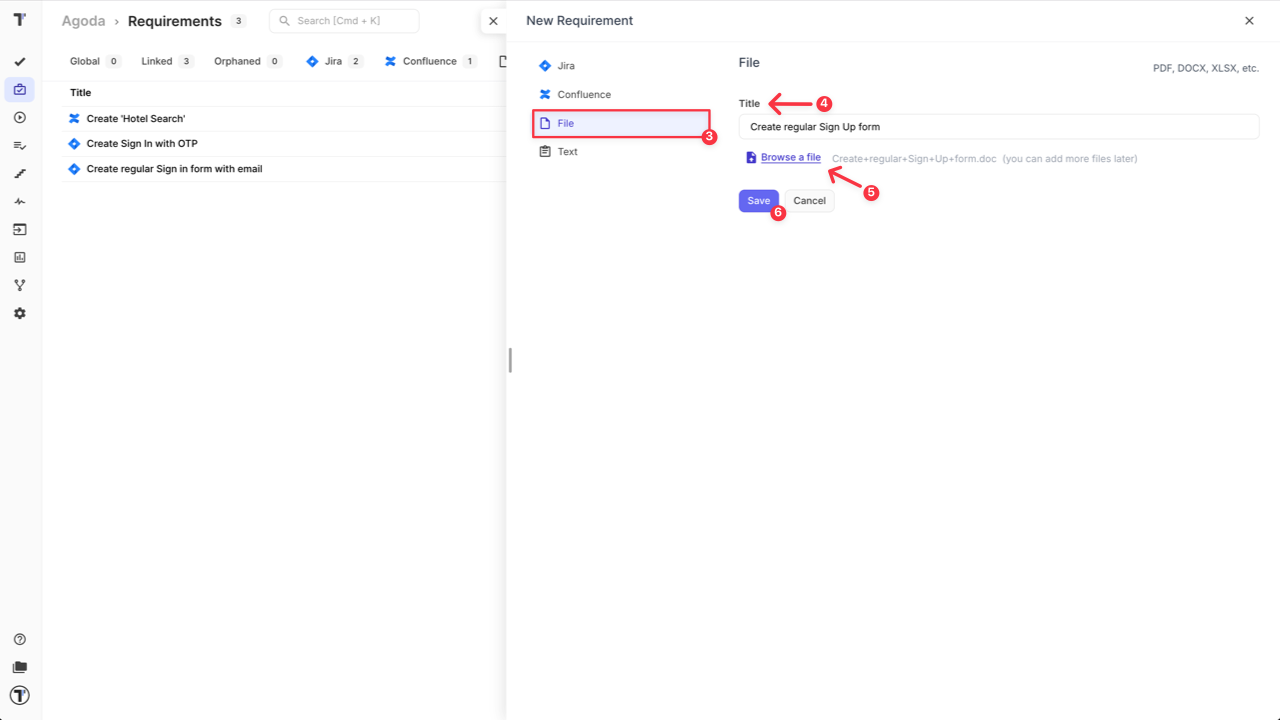
- To add a file as a requirement source:
- Select ‘File’.
- Enter Title.
- Upload any file in allowed format via ‘Browse a file’.
- Click ‘Save’ button.
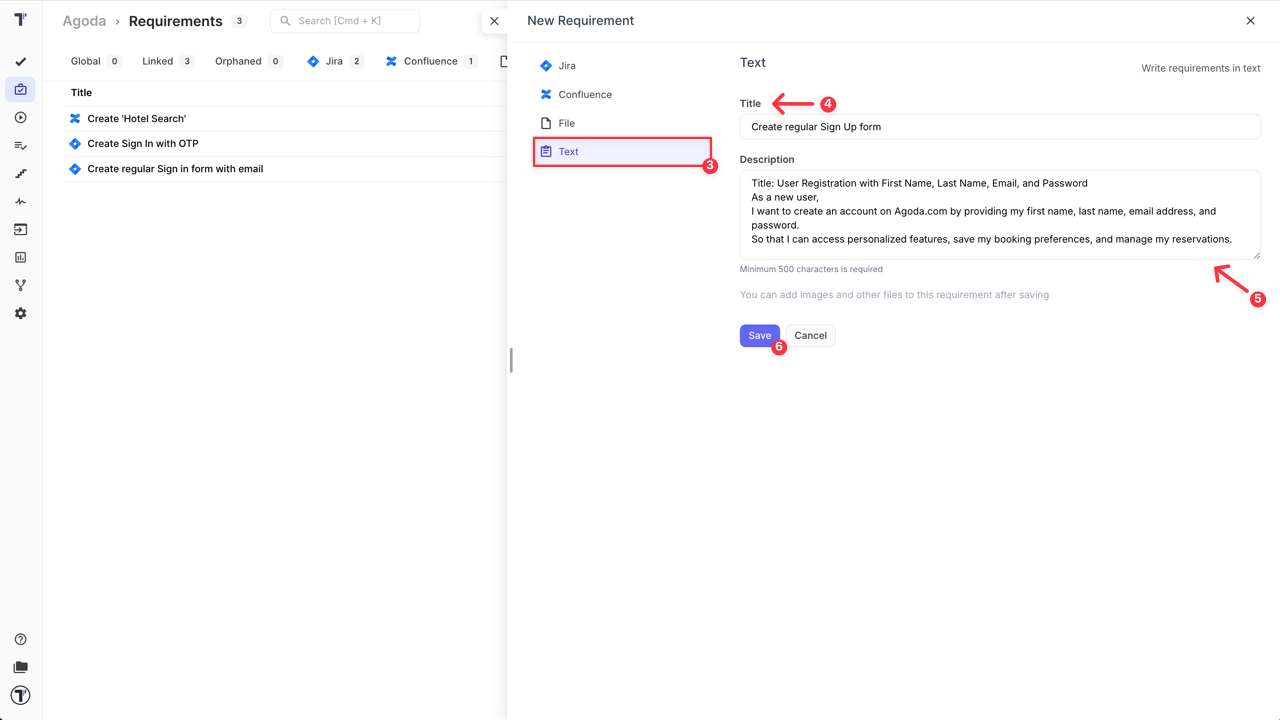
- To add a plain text as a requirement source:
- Select ‘Text’.
- Enter Title.
- Add Description.
- Click ‘Save’ button.
Global Requirements Setup
Section titled “Global Requirements Setup”If you set up Requirements as Global on a Project level, it will allow the system to automatically attach selected requirements to every newly created test inside the project. This is especially useful for teams working with mandatory compliance rules, overarching documentation, or project-wide standards that must be reflected in all tests.
To set up Requirements as Global:
- Go to ‘Requirements’ page.
- Select a Requirement you want to set up as global.
- Click ‘Extra menu’ button.
- Select ‘Make Global’ option.
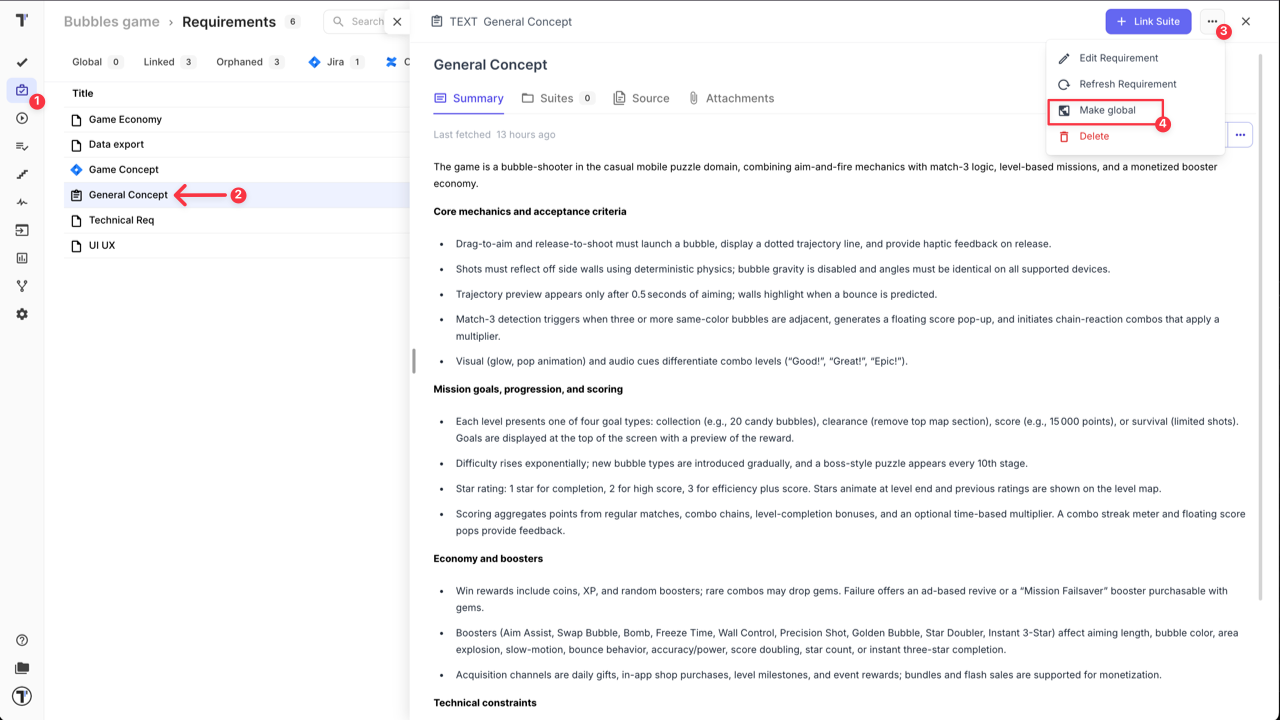
This ensures consistency and saves time by eliminating repeated manual assignment.
AI-Powered Image Understanding for Requirements
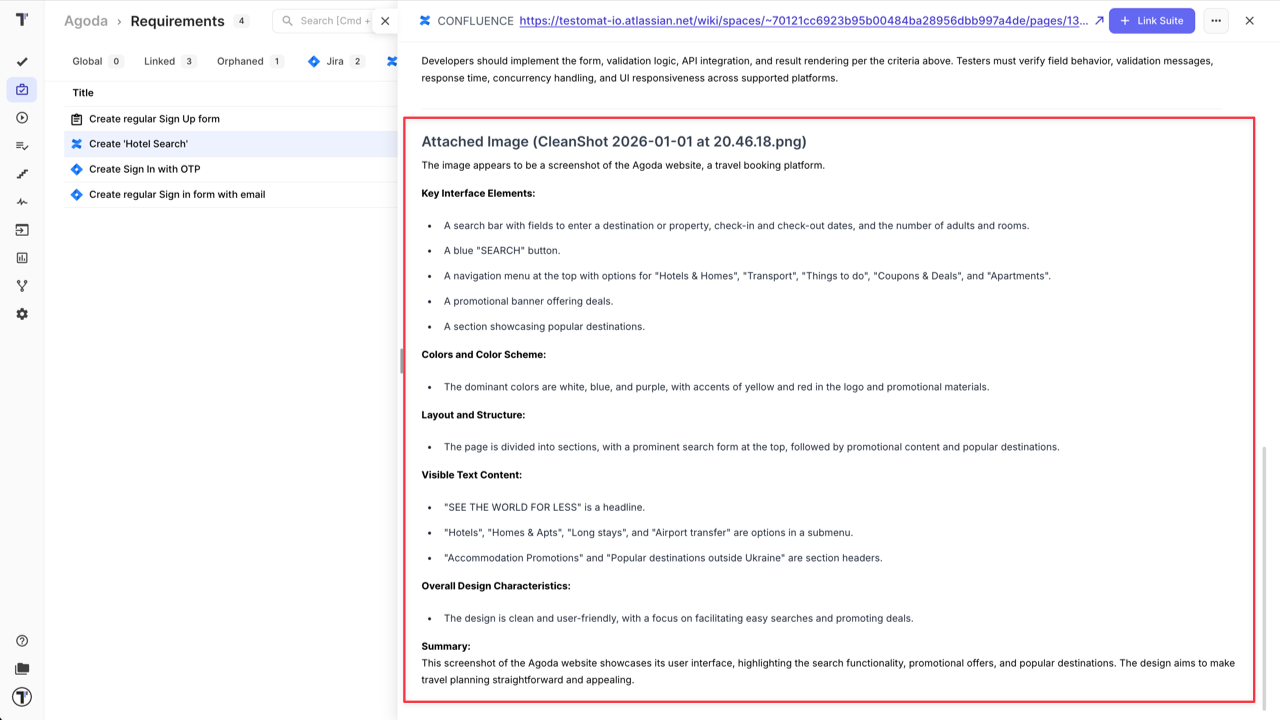
Section titled “AI-Powered Image Understanding for Requirements”With this feature you can attach images directly to your requirements, and AI will automatically analyze them and include their content in the requirement summary. This enriched summary is then used during test generation, ensuring that visual details are not missed.
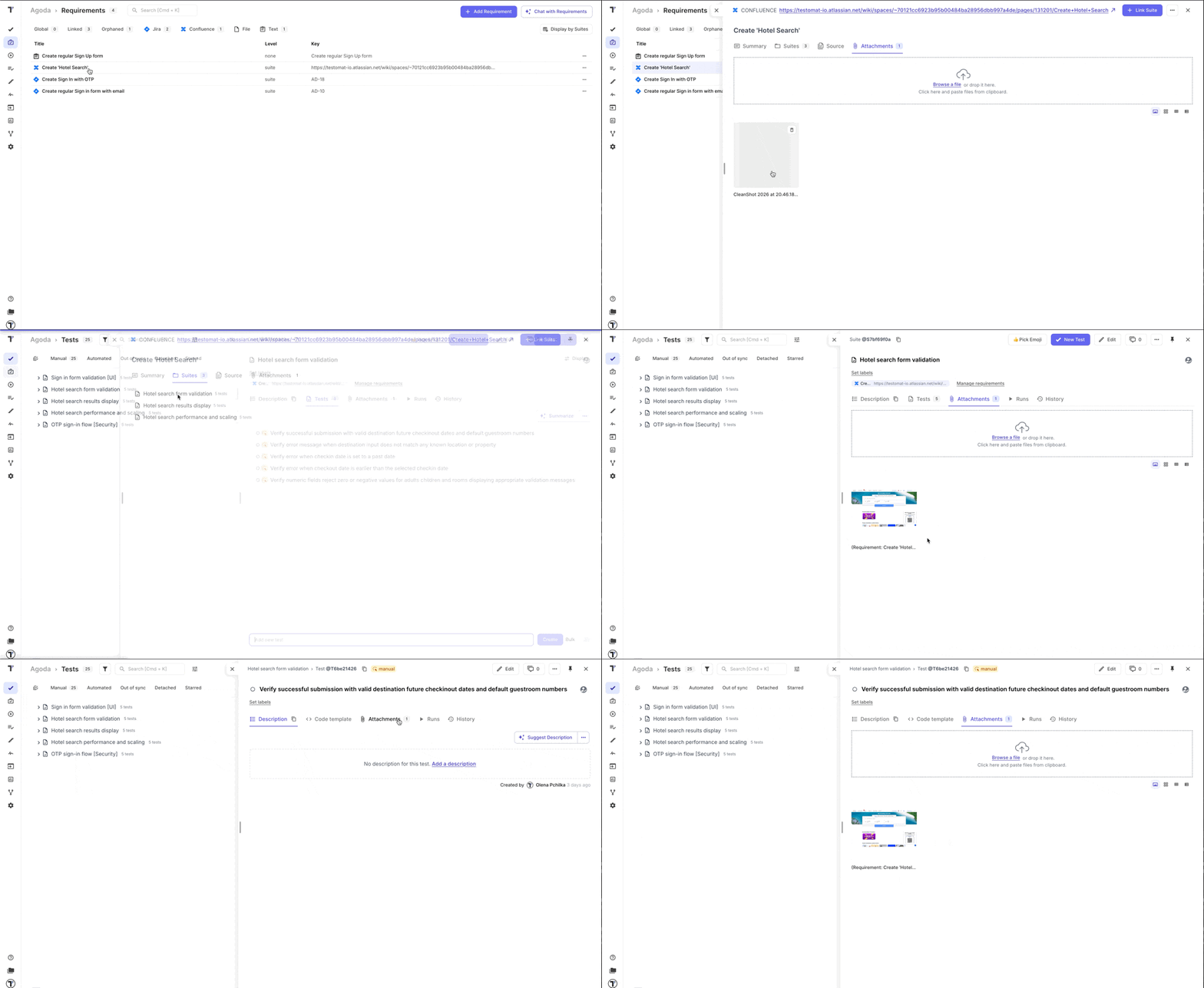
The same behavior now applies to Jira- and Confluence-based requirements: if your Jira ticket or Confluence page includes attachments (images, diagrams, files), Testomat.io will import them, analyze them, and enrich the requirements summary — giving you more accurate AI-generated tests.
The requirements created based on the attached image will be displayed on ‘Summary’ tab under main requirements details in the ‘Attached Image’ section.
Edit Linked Requirements
Section titled “Edit Linked Requirements”The original requirement cannot be edited inside Testomat.io, as it comes from an external source. But you can clarify any missing details from the original requirement or add some notes:
- Go to ‘Requirements’ page.
- Select the Requirement.
- Click ‘Extra menu’ button.
- Select ‘Edit Requirement Notes’ option.
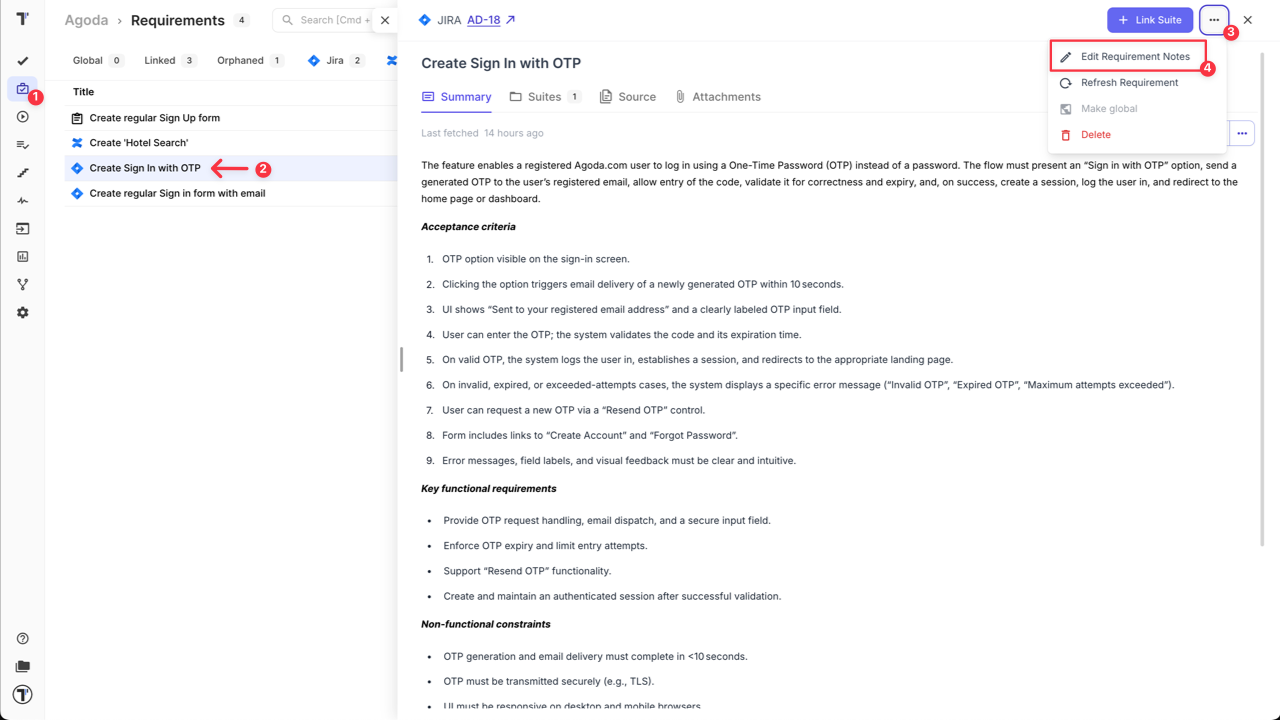
- Add additional information/edge cases/notes.
- Click ‘Save’ button.
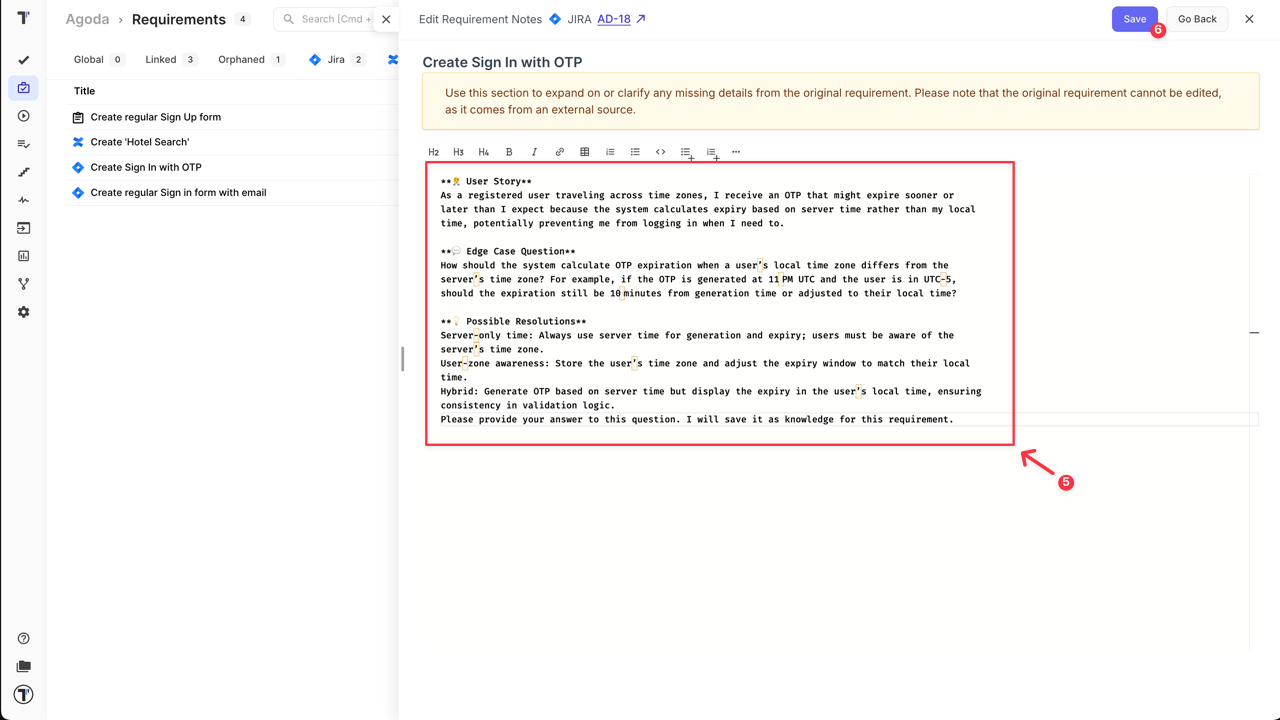
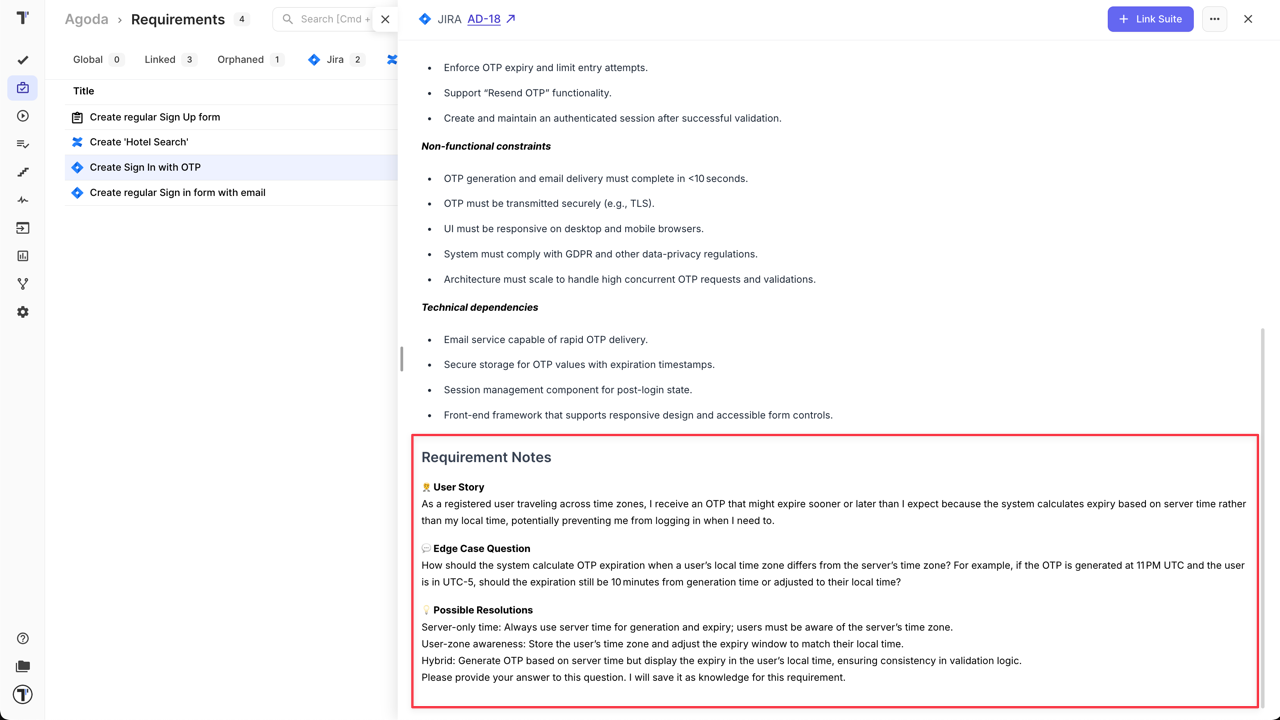
After notes are added and saved, they will be displayed on ‘Summary’ tab under main requirements details in the ‘Requirement Notes’ section.
Refresh the Requirement
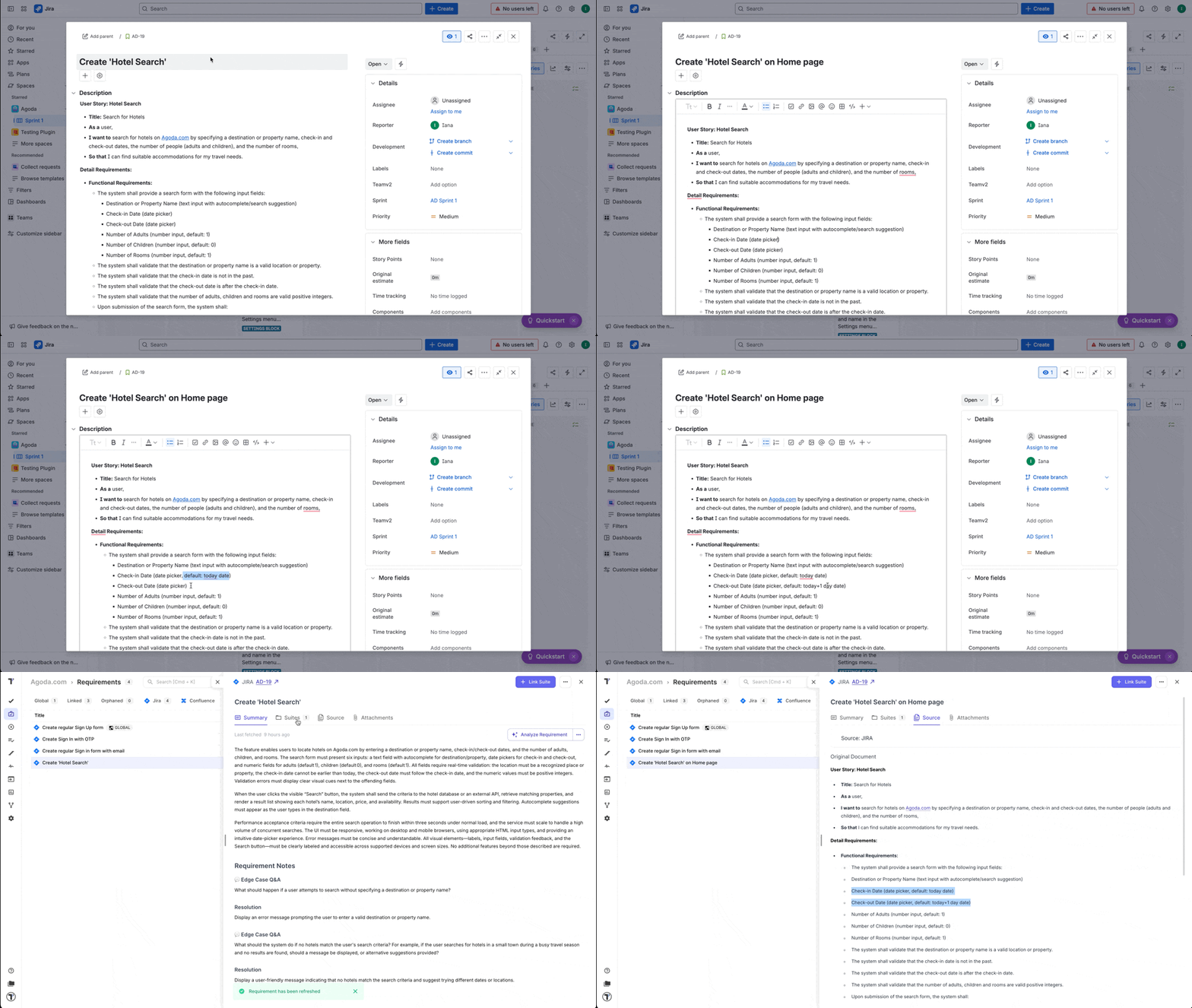
Section titled “Refresh the Requirement”If you added some changes to the original source of your requirement, you would want it to be updated in your Testomat.io Project as well. To resync the requirement you need:
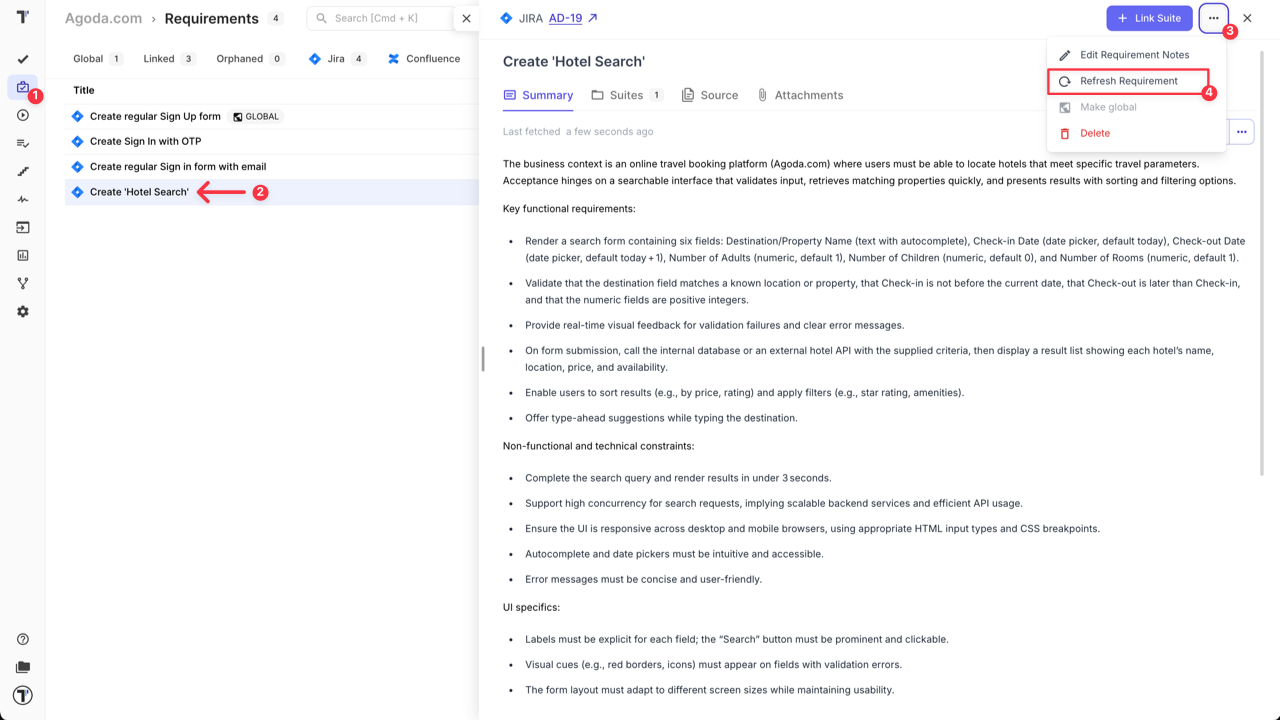
- Go to ‘Requirements’ page.
- Open requirement that was updated.
- Click ‘Extra menu’ button.
- Click ‘Refresh Requirement’ option.
After the refreshment your requirement is automatically updated so you don’t need to link the requirement again or update it manually.
Analyze Requirements for Edge Cases
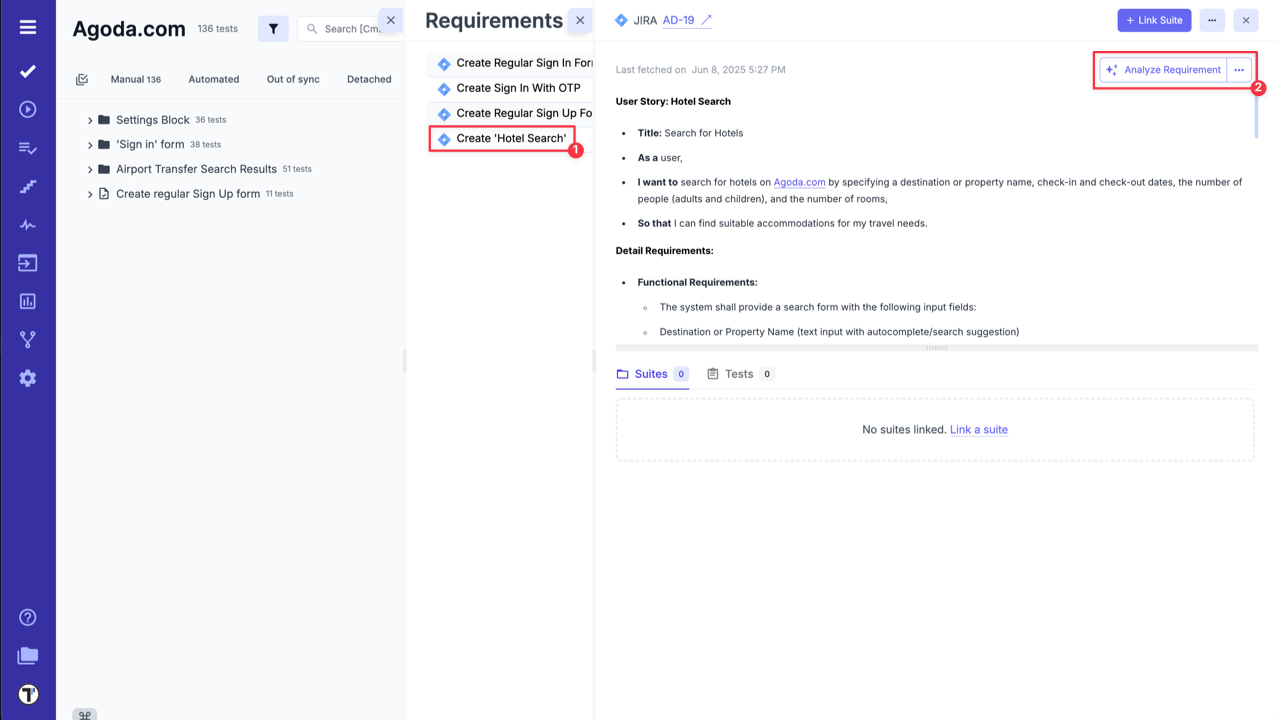
Section titled “Analyze Requirements for Edge Cases”- On ‘Requirements’ page open added Requirement.
- Click ‘Analyze Requirement’ button.
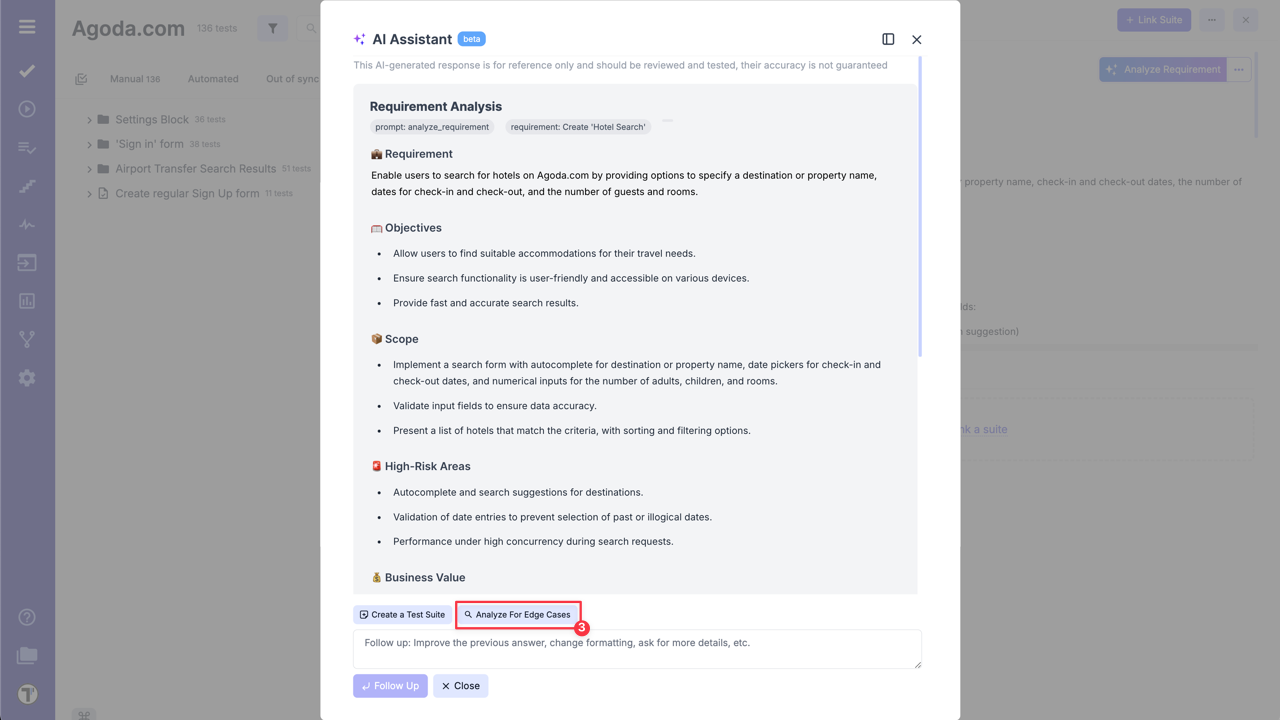
- Click ‘Analyze For Edge Cases’ button inside the AI Assistant.
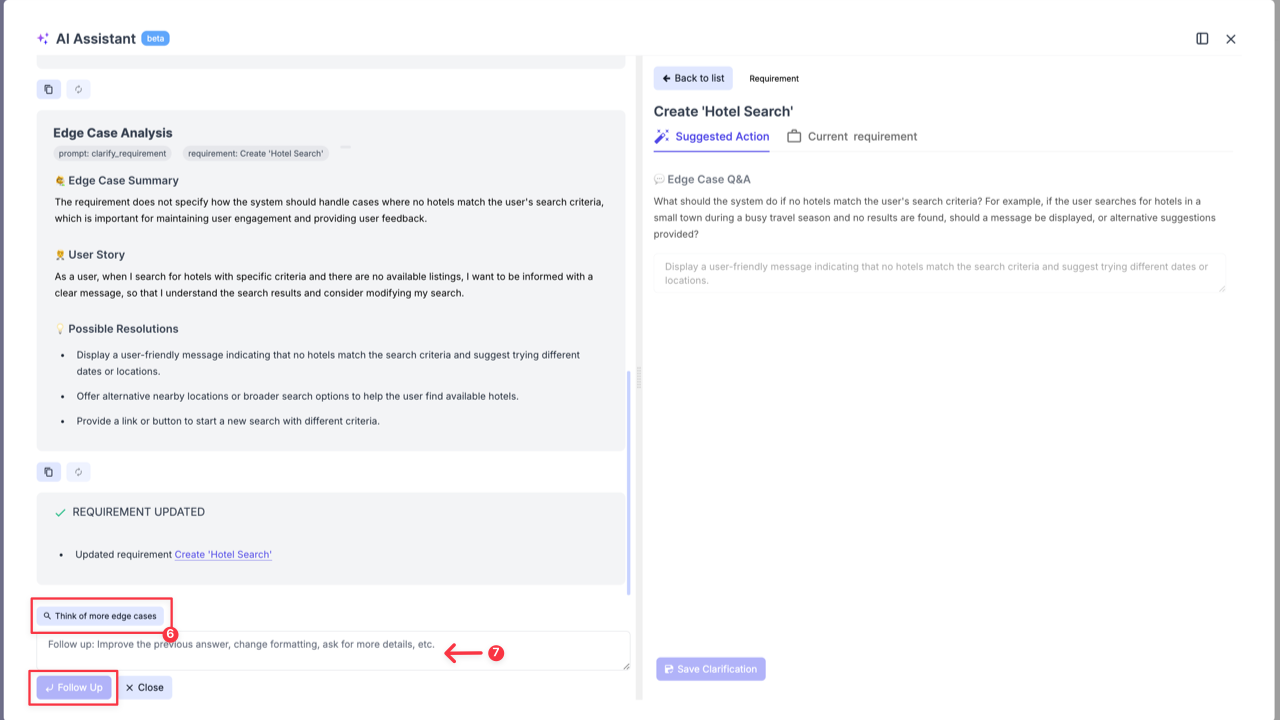
- Check suggestions from AI Assistant and add them as the edge cases solution.
- Click ‘Save Clarification’ to the requirement if needed.

- Ask AI to generate more Edge cases by clicking on ‘Think of more edge cases’ button.
- Improve the previous answer or ask about more details by sending relevant request via the ‘Follow up’ input field.
Create a Suite Case from Requirements
Section titled “Create a Suite Case from Requirements”- Open added Requirement.
- Click ‘Analyze Requirement’ button.
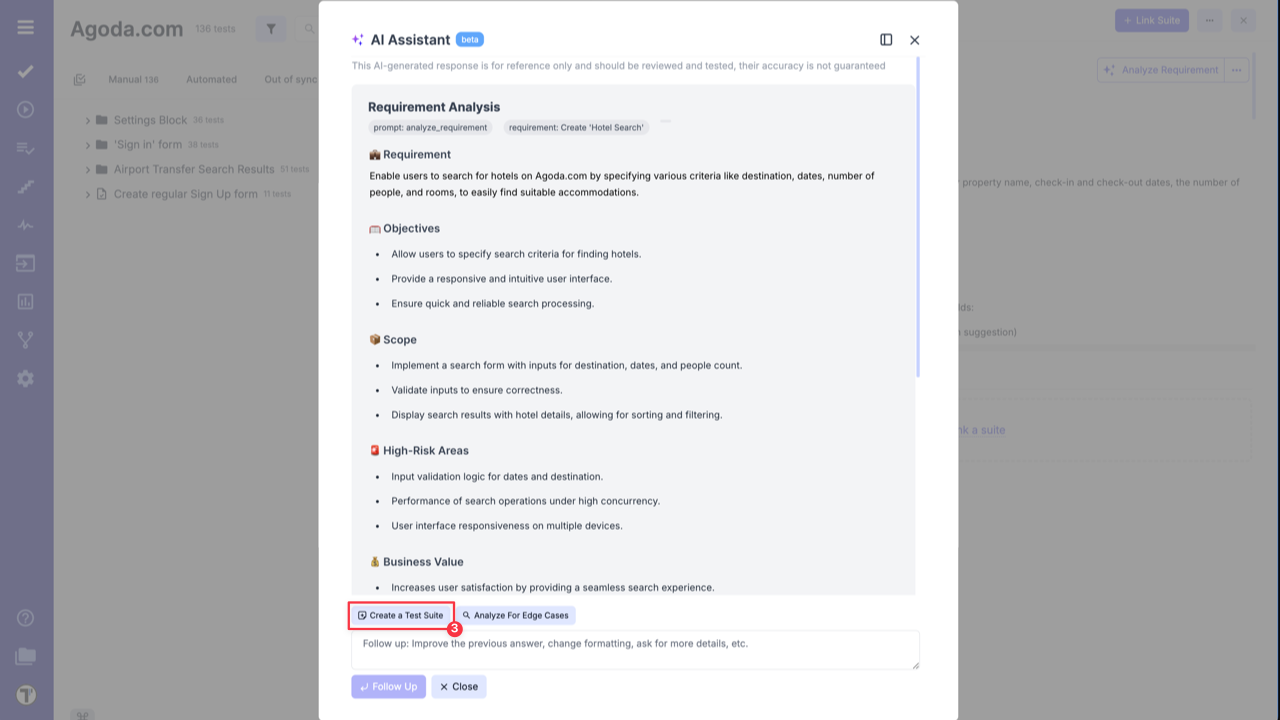
- Click ‘Create a Test Suite’ button inside the AI Assistant.
- Add suggested test suite to your project.
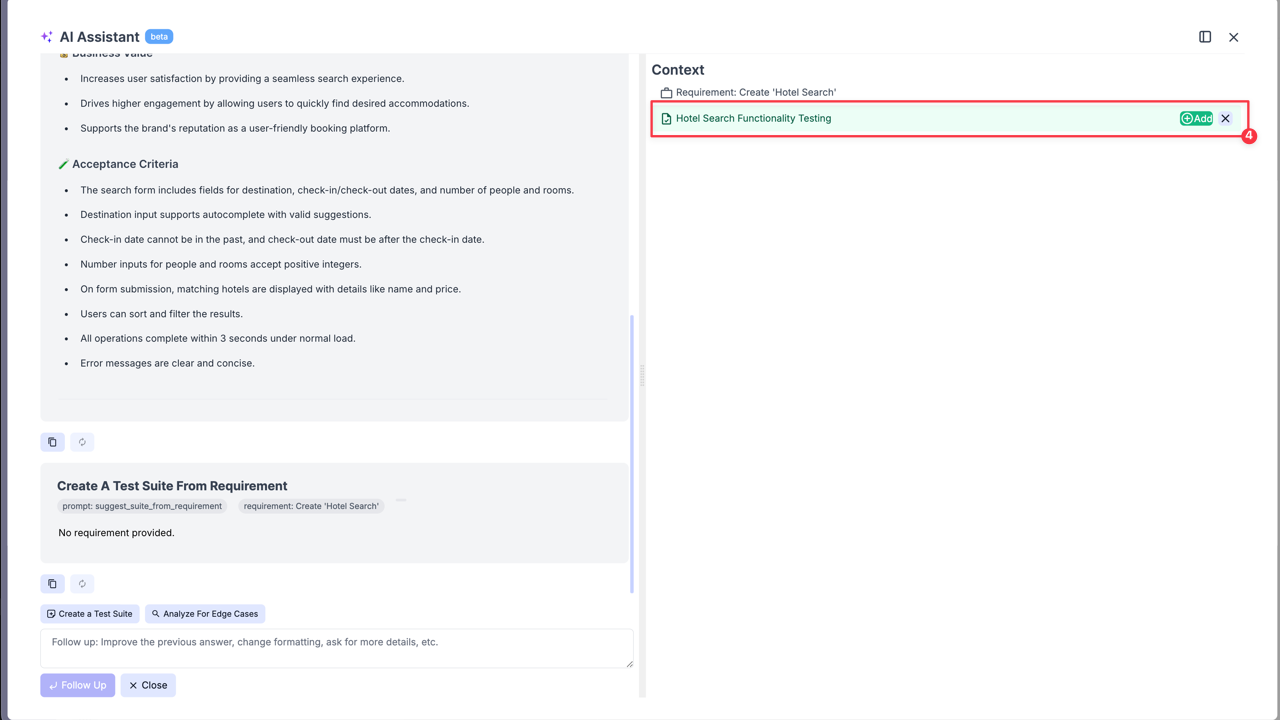
After adding the Suite Case to your project, you can begin creating your test cases or use AI to generate them for you.
Generate Test Cases from Requirements Page
Section titled “Generate Test Cases from Requirements Page”- Open added Requirement.
- Click ‘Analyze Requirement’ button.
- Click ‘Add tests to {Suite_name} Suite’ option.
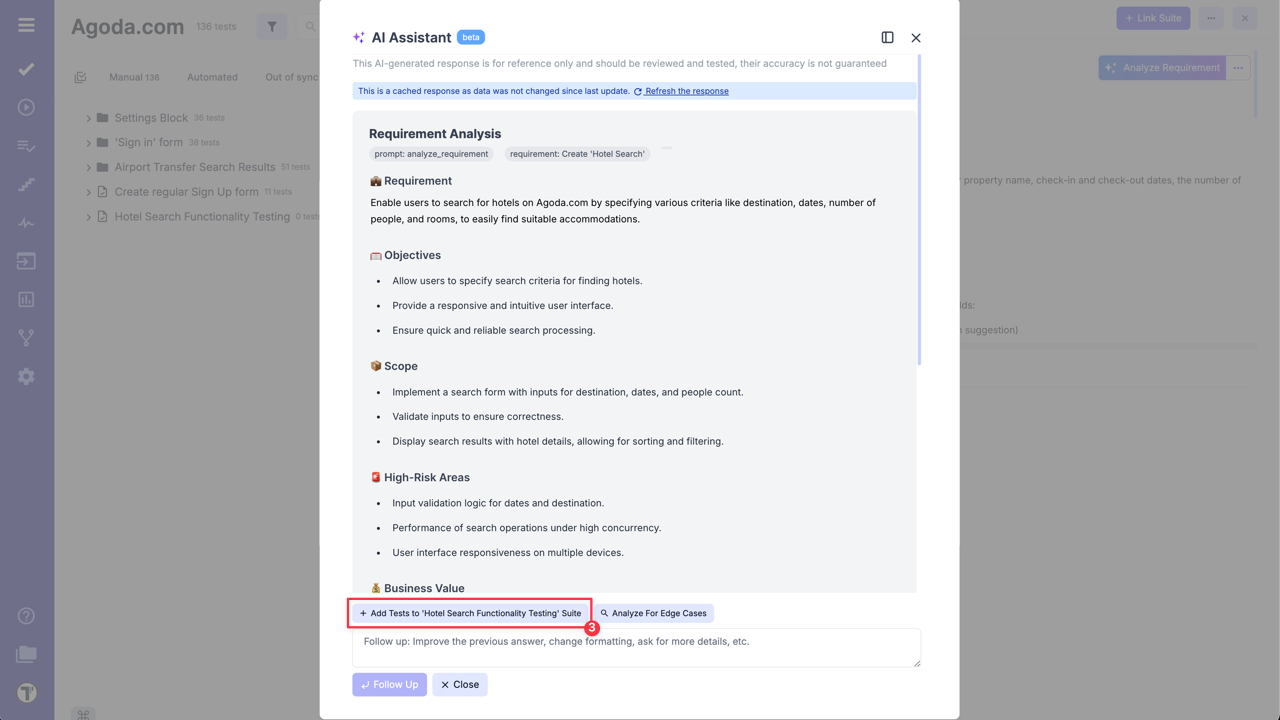
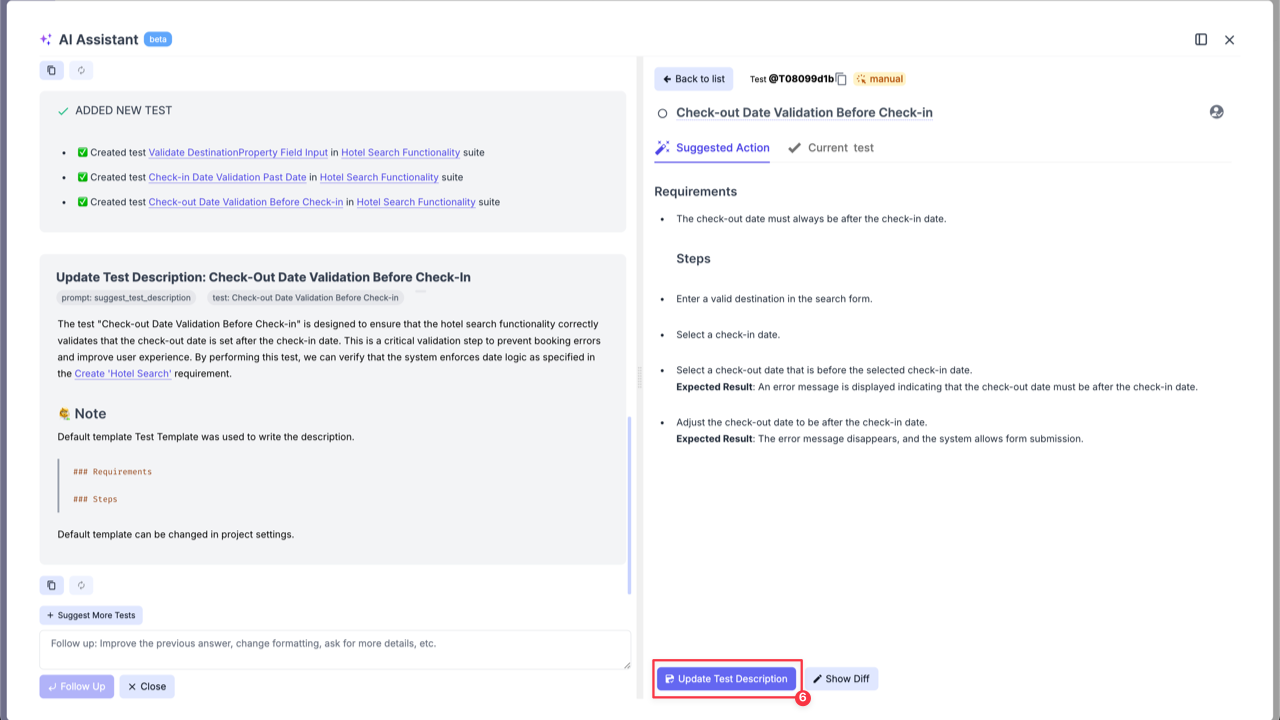
- Check suggested test cases and add the relevant ones by clicking ‘Add’ button.
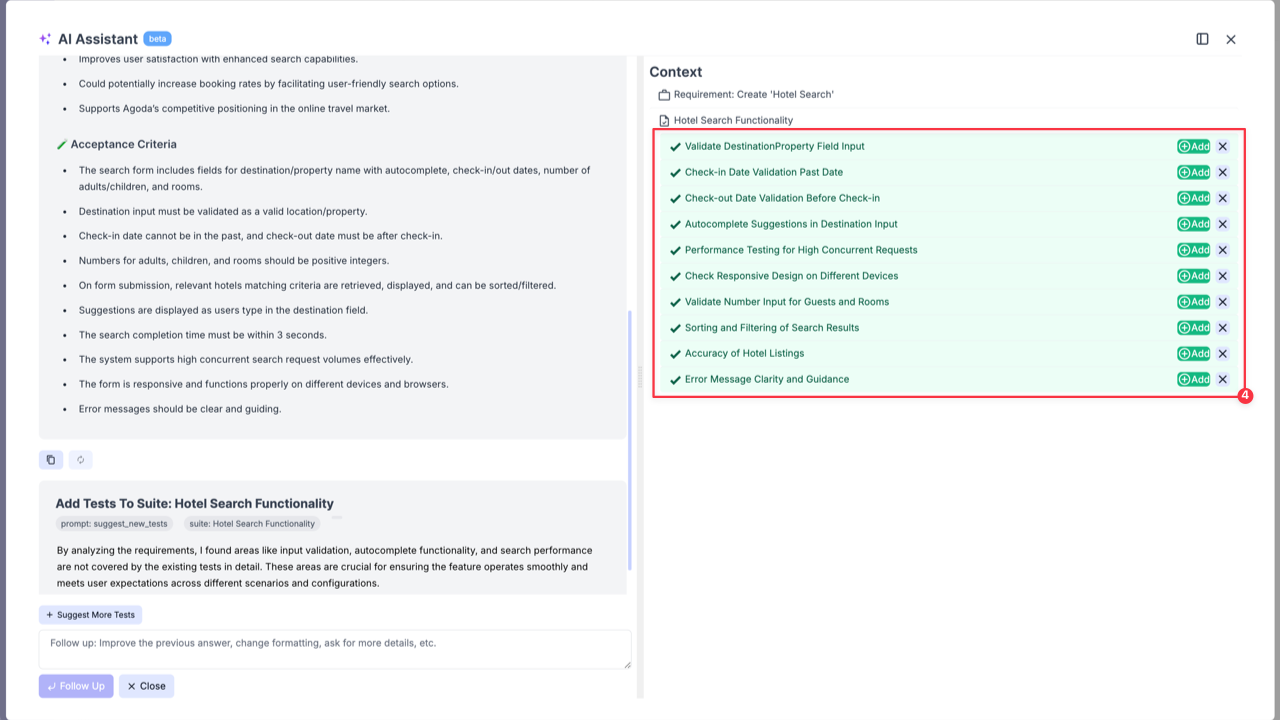
- Click ‘Write Description’ button to add description to the selected test case.
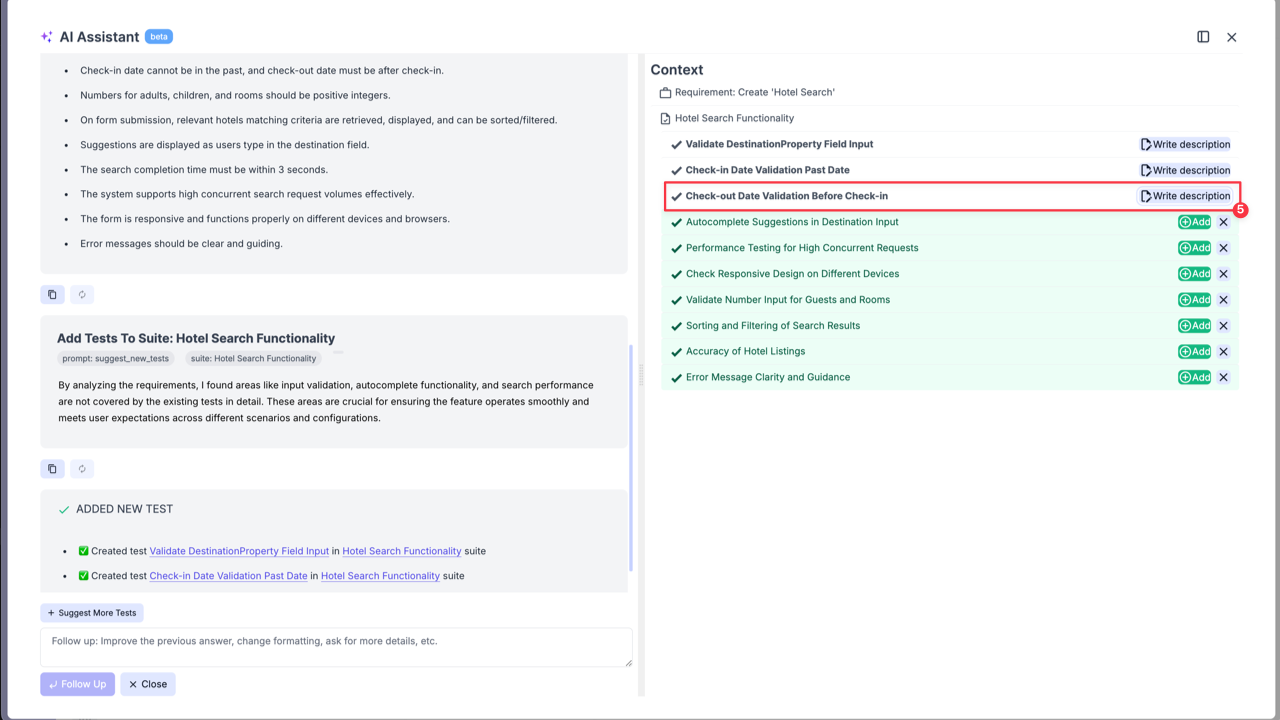
- Click ‘Update Test Description’ button to add genearted test description to the test case.
Suggest Test Cases Based on Requirements from Suite Level
Section titled “Suggest Test Cases Based on Requirements from Suite Level”You can also generate test cases directly from a Suite if it has a linked requirement.
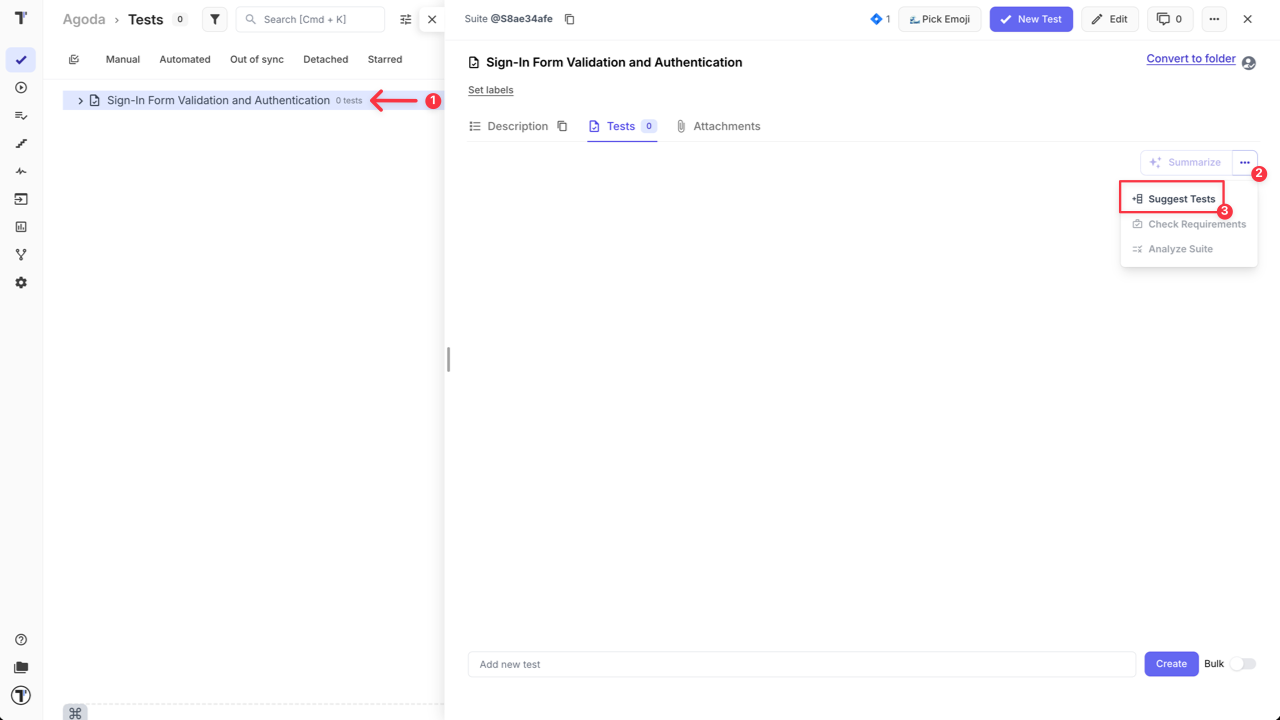
- Open Suite Case with the linked requirement.
- Click ‘Extra menu’ button on ‘Summarize’ button.
- Select ‘Suggest Tests’ option from the dropdown list.
Similar to the previous case, review the suggested test cases, add the relevant ones, and write descriptions for the selected test cases directly from the AI-assistant window.
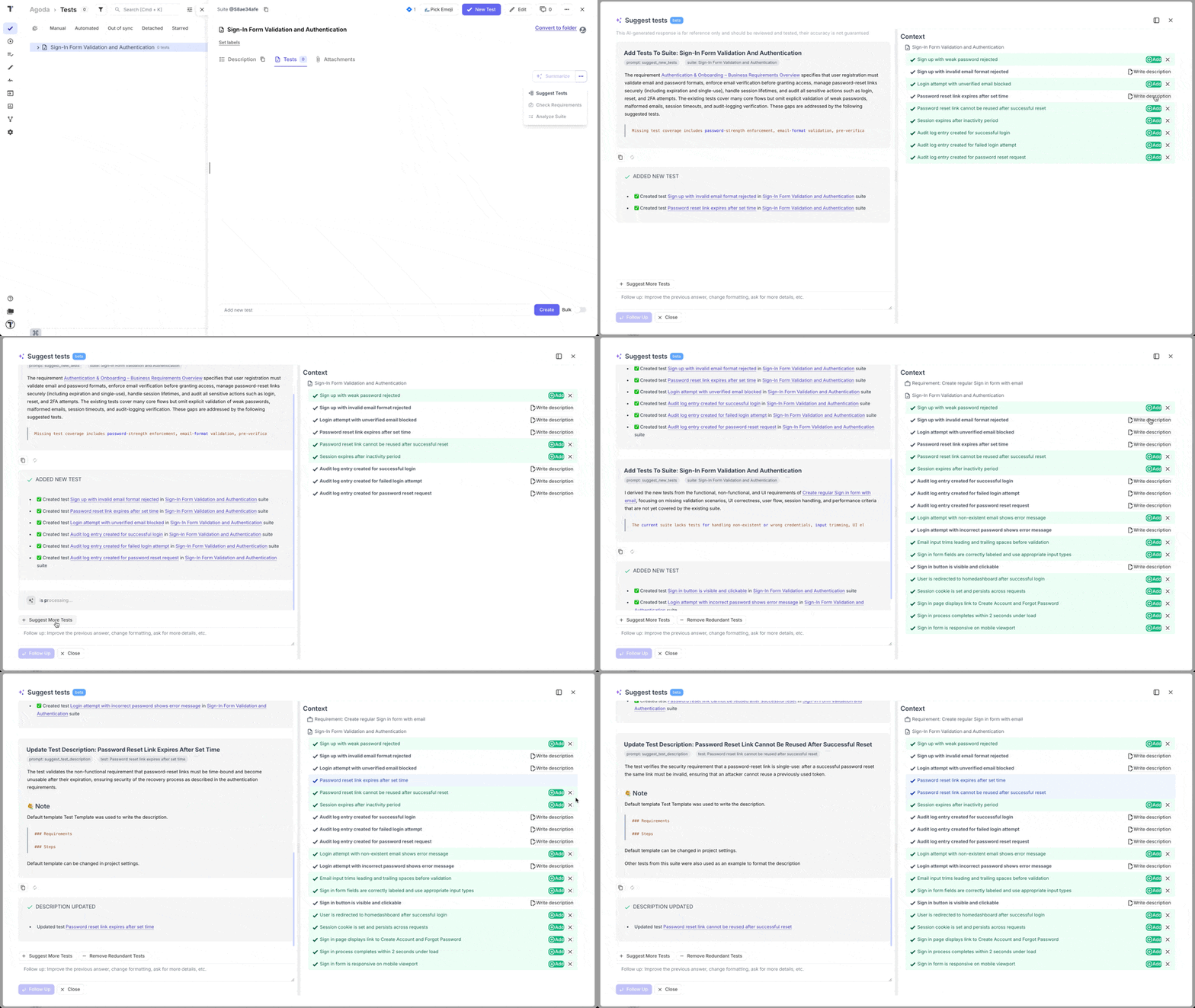
All added test cases will be displayed in your Suite after AI-assistant window is closed.